
General information
The iPhone/iPad Trilobite app runs on Macbooks released in 2020 and beyond – Macbook pro, air & neo. The Macbook does not have GPS hardware or an internal compass, so is not a field device, but you can use it in the home, office or base camp, if you like the bigger screen and a physical keyboard. If you have an iPhone or iPad, and use the same Apple ID on your Macbook, the app will use the App Store subscriptions that you have already bought. The Macbook interacts fine with Android devices, but if this is your hardware mix, you need to purchase a separate App subscription ($11.99/year) from the App Store, for the Macbook (and any prospector subscriptions if you need the prospector maps on the MacBook).
As an aside, a Macbook Air (or Pro) is required to run QGIS – a Neo won’t be sufficient.
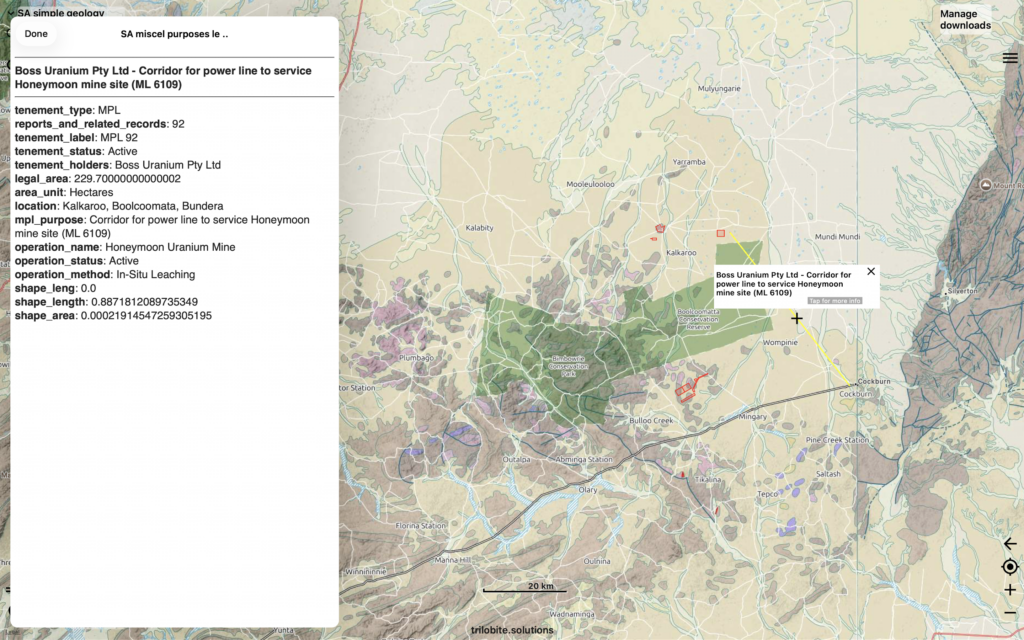
Screenshot of Macbook full-screen
Installation
Install the Trilobite app from the iPhone/iPad App Store – https://apps.apple.com/au/app/australian-geology-travel-maps/id1361470455
Downloading maps and data layers
Use ‘Manage downloads‘ in exactly the same way as you do on your iPhone or iPad, when you have a good internet connection.
Importing locations and trails
- Run the Finder app
- Browse to your .csv files on your MacBook’s local drive or USB stick or iCloud Drive
- Right-click the .csv file and click ‘Open with’, then ‘Other …’
- Enable ‘All applications‘
- (Tick ‘Always open with‘ if you want to save time with future .csv imports)
- Double-click ‘Australian Geology Travel Maps.app‘
- The Trilobite app will then appear, and report the results of the .csv import
You can do similarly with .kml, spatialite (.sqlite), .geojson and .mbtiles files
Transferring data from your phone/tablet to your Macbook while in a base camp
In the absence of a wifi network, the simplest way to do this is to backup your locations or trails to a USB stick – from an Android or Apple device – (see backups), then insert the USB stick into the MacBook and import the data.
Exporting locations from your Macbook
You cannot record trails because there is no GPS (explained above), but you can create marked locations and save this data to a .csv file. This is via the ‘Backup my locations‘ option in the app menu (icon with 3 horizontal bars). Then this can be imported into the Trilobite app on either an Apple or Android device.