
Your data is absolutely private
Trilobite Solutions understands that the privacy of your data is paramount. Australian Geology Travel Maps writes trails and locations datato your phone/tablet only. None of your data is copied behind the scenes to the internet. None of your data is visible to Trilobite Solutions. The only way for anyone (including Trilobite Solutions) to access your marked locations and trails is to have your device in their hands, or for you to share your data (as a .kml file, .csv file or .geojson file) and send it to them.
Why do I need to backup my locations/trails?
As mentioned above, your locations and trails are only stored in one place – on your phone/tablet – so that your data is yours only. But this is not a safe storage area. Eventually you can lose your phone, drop it on the ground, drive over it, drown it, or it might simply not start up one morning. Did you know if you uninstall the app or ‘clear data‘ in the ‘Settings’ app this will delete your trails and locations? Therefore you need to regularly backup all your locations and trails to.csv files, if your data is important to you, and certainly if you have years of data.
Backup your locations (‘way-points’) regularly
In the app’s menu (icon with 3 bars), tap ‘BACKUP my locations‘ and follow the instructions.
Minimizing your number of trails
If you have a large amount of trails data (eg. 100’s of kms) the app might get laggy, so delete any trails you no longer need. If you have trails in an area that you will not be re-visiting soon, backup the trails in that area to a .csv file (details below) – rename the file to include the name of the location – and then delete those trails within the app. You can restore them any time in the future, from the .csv file you just created, when/if you need them again.
Backing up your trails
iPhones & iPads
Tap on any trail, then the popup
Then the icon to the left of ‘Backup / Transfer‘
Then ‘ALL your trails’ or ‘Trails in map view‘
Then ‘Save to Files‘
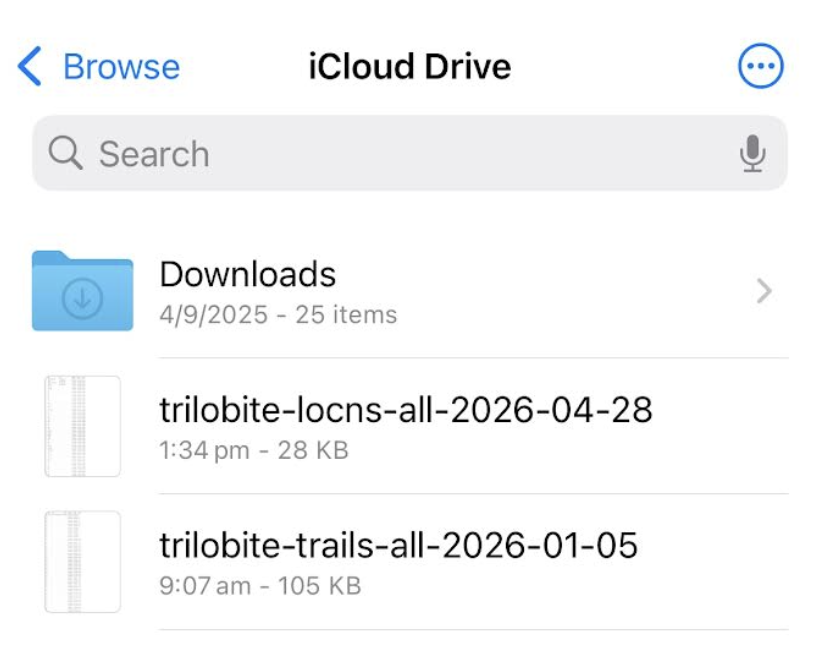
Go to ‘iCloud Drive‘ and tap ‘Save‘
A .csv file starting with ‘trilo-trails‘ will be created.
(If you are backing up an area, rename the .csv file to include the area name.)
Android phones & tablets
Tap on any trail, then the popup
Then the icon to the left of ‘Backup / Transfer‘
Then ‘ALL your trails’ or ‘Trails in map view‘
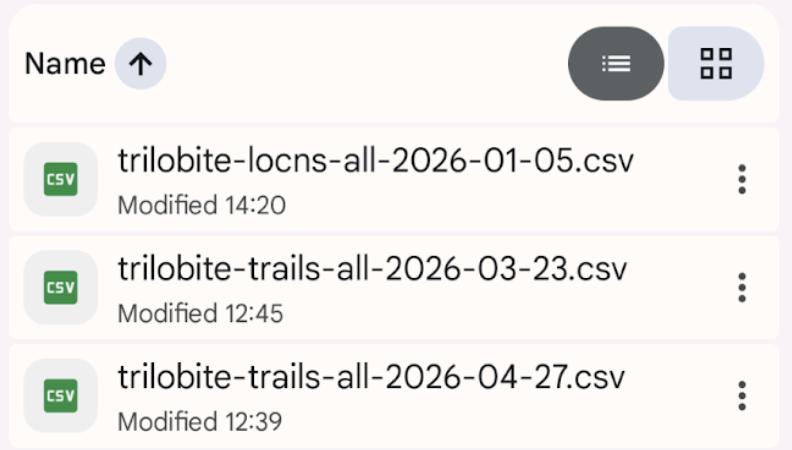
Then tap the (Google) ‘Drive‘ icon, and then tap ‘Upload‘
A .csv file starting with ‘trilo-trails‘ will be created.
(If you are backing up an area, rename the .csv file to include the area name.)
Restoring trails/locations from a backups created above
Apple iPhones and iPadsRun the 'Files' app, and go to ‘iCloud Drive‘
Hold your finger on the latest .csv file, then tap ‘Share‘ when the options appear
Tap the Trilobite icon. Locations/trails will be imported.
Android phones & tablets
Run the ‘(Google) Drive‘ app, and locate the backed up .csv files
Tap the 3 dots to the right of the latest .csv file, then tap ‘Open with‘
Tap the Trilobite icon. Locations/trails will be imported.
Special note ..
On any device or computer, you can access data on Google’s and Apple’s cloud drives ..
iCloud Drive – https://www.icloud.com/iclouddrive/ – sign in with your Apple ID
Google Drive – https://drive.google.com/drive/my-drive – sign in with your Google account.
So you will not lose .csv data if you switch from Apple to Android or vice versa. Also, the .csv files are small so will not impact your free quota on iCloud or Google Drive.
Backing up your data WITHOUT placing it on the internet
The backup methods above involve copying your data to PRIVATE locations on the internet – ie. your private email system or your personal area within Google drive or iCloud drive. But if you are not happy with that, you can backup directly to a USB stick – so your data never hits the internet. Note that USB sticks are not totally reliable long-term so backup to 2 well-known-brand USB sticks, or copy the .csv files from the stick to a computer.
Android phones & tablets
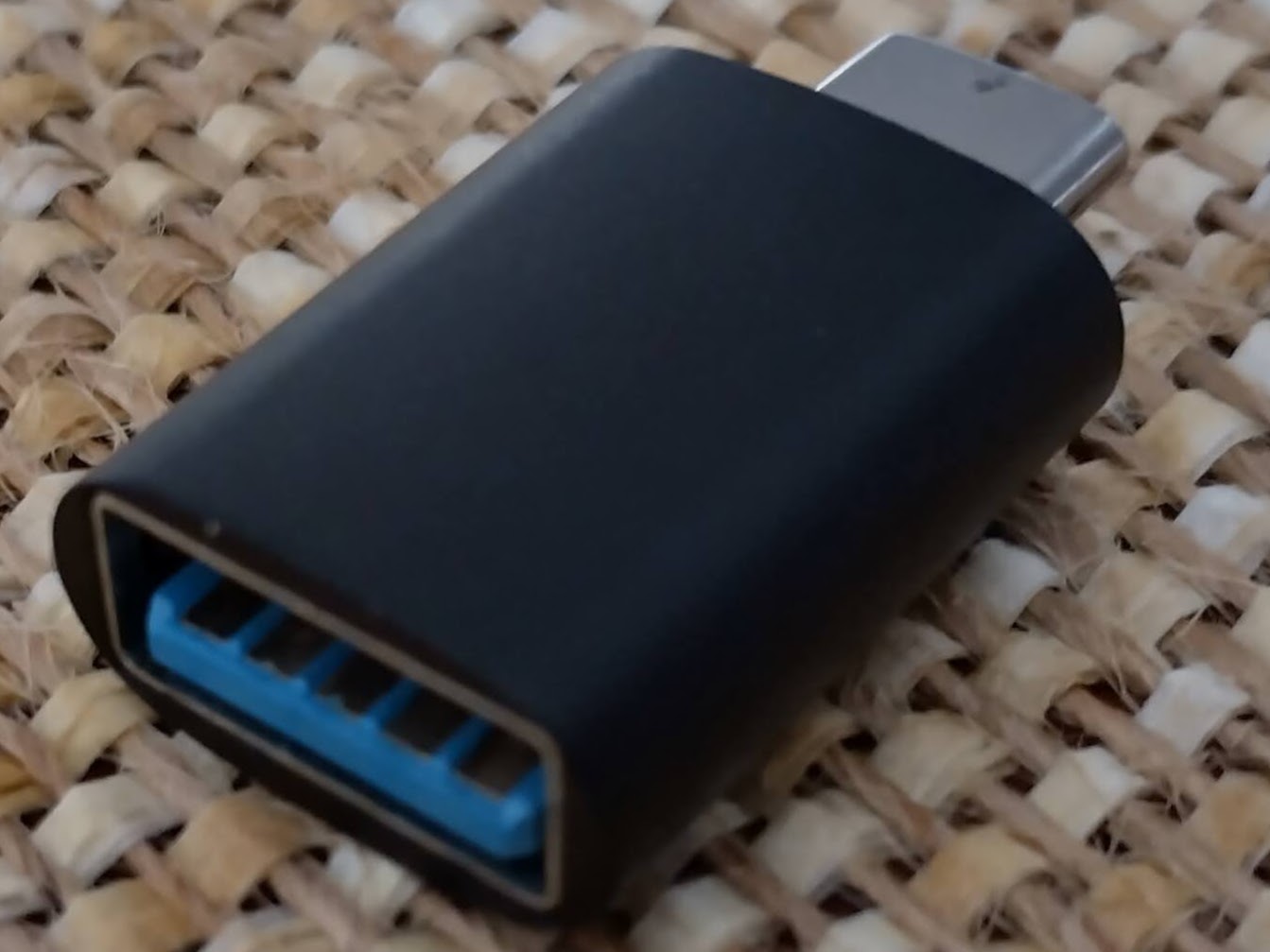
Purchase a USB-C-to-female-USB-A adapter. (<$10)
Install File Manager + on your phone.
Insert your USB drive into the adapter, and plug the adapter into your phone/tablet.
Do as described in the Android instructions above, but choose File Manager from the list of apps, and save the .csv file to your USB drive.
Apple iPhones and iPads
For older iPhones/iPads, purchase a lightning-to-female-USB-A adapter – as below. (<$10)
For newer iPhones/iPads that have a USB-C socket (eg. iPhone 15), purchase a USB-C-to-female-USB-A adapter, as above.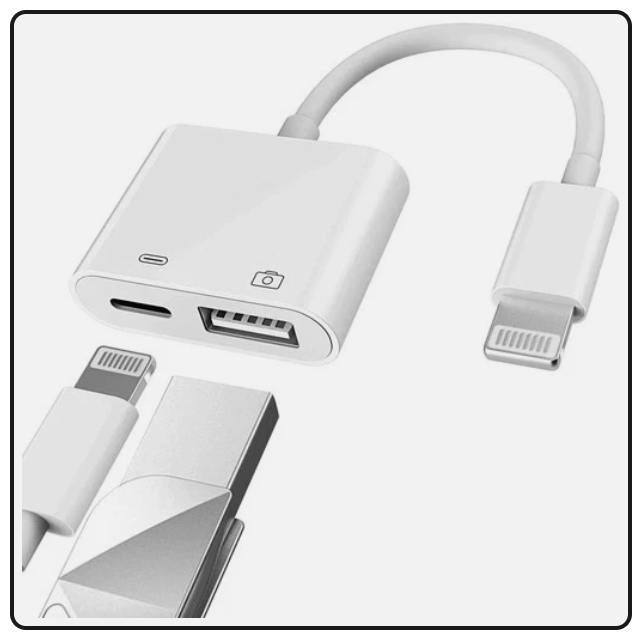
Insert your USB drive into the adapter, and plug the adapter into your iPhone/iPad.
Do as described in the Apple instructions above, but after choosing ‘Save to files‘, save the .csv file to your USB drive.
Sending your trails/locations in an email to a friend or another device
Tap on one of your locations, then on the popup. When the details are shown for that location, tap the option to share your locations as CSV, then tap ‘All your locations’ or ‘In the map view’ and select your email app. A ‘trilo-locns … csv‘ file will then be attached to a new email message. Send this email to yourself or your friend.
Repeat the process above, but start by tapping on a trail, to backup your trails to a ‘trilo-trails … csv’ file.
Your friend (or you) can import the .csv file by opening the email, tapping on the attached .csv file, and choosing ‘Open with ..‘ the Trilobite app.
Video – transferring trails to another person/device, in an email – see video #3 at https://trilobite.solutions/maps/videos/
Transferring .geojson data to QGIS
Within the Trilobite app, export your trails and/or locations as a .geojson file to an email sent to yourself. Using your computer’s email system, save the emailed .geojson to a folder. Within QGIS, click Layer >> Add layer >> Add vector layer. The id, title, descr and colour attributes will be transferred into QGIS.
Or the quicker way – drag the .geojson file from your file manager onto the map area in QGIS.
Converting GPS coords to an MGA grid (advanced)
To convert to UTM coordinates – in QGIS, click Vector >> Data management tools >> Reproject layer and specify the trails or locations layer, and the UTM zone – eg. ‘GDA94 / MGA zone 51S’ – choose the zone for your area. For reporting purposes, you can then save the data to a CSV file – click Layer >> Save as >> Comma separated values [CSV] and set the geometry to ‘AS_XY‘. You can now open the .csv using a spreadsheet app.
Converting GPS coords to a local grid (advanced)
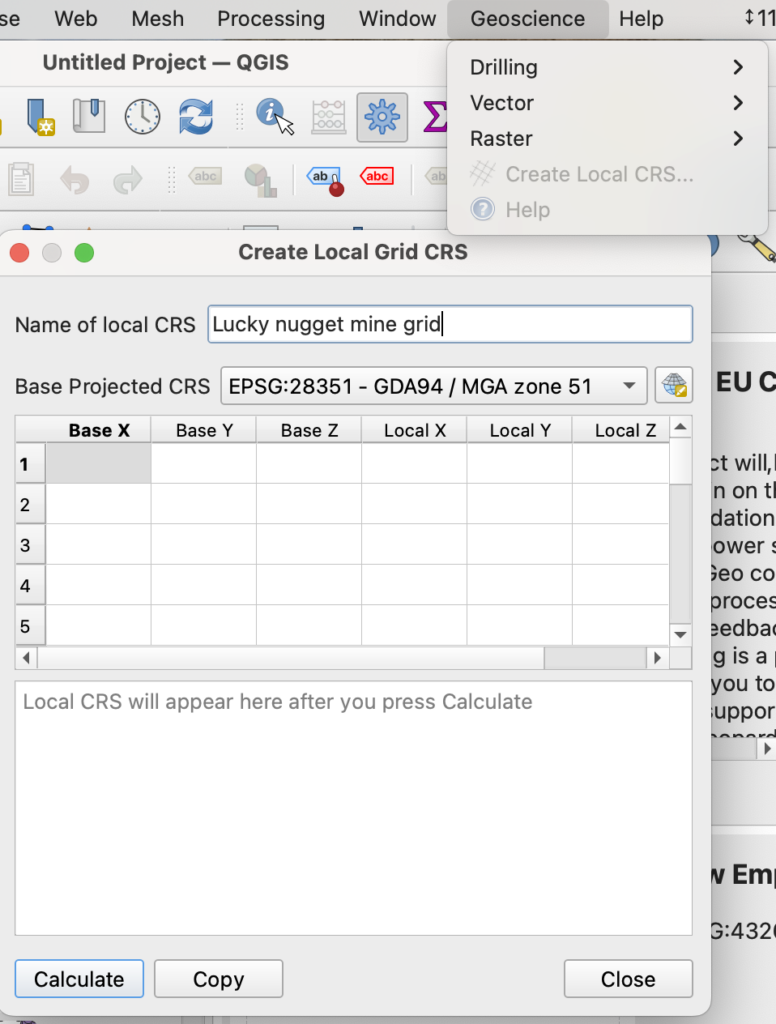
The process is identical to the above for a local/mine grid – but first you need to create a custom ‘CRS’ for the local grid. Install the ‘Geoscience‘ plugin in QGIS – click Plugins >> Manage and install plugins and so on.
Then click Geoscience >> Create local CRS. Register at least 3 locations – well spaced apart and preferably near the edges of the grid area – and enter the ‘GDA94 / MGA zone ..’ (with your UTM zone) coordinates and local grid coordinates for each location into the tool to create a CRS definition. For a mine grid, the surveyor should be able to provide you with accurate coordinate pairs.
Click Settings >> Custom projections and create a new projection, pasting in the WKT definition created with the tool. (Now you can follow the UTM instructions above, but using your new local projection instead.)
System documentation for local CRS tool – https://spatialintegration.com/node/6
Contact Trilobite Solutions if you require any assistance with these processes.